 OurDance
01Add your videos
- Import your videos through Files, then open one in Pro practice. Since 175, no demonstration videos are bundled.
- Tap an empty number to choose from library thumbnails or import another video. Tap an occupied number to select. Numbers identify fixed slots: filling 3 fills slot 3; reordering does not renumber sources.
- Ordinary iPhone runs three sources maximum; iPad and iPhone Duo run four. Multiple slots require full access, available in this personal Alpha. Without access, single-video practice remains and saved slots are retained.
02Choose a layout
Open Layout: choose Single, Vertical, Horizontal or 2 × 2. Select a preview or numbered tab; drag numbered tabs to reorder. Apply confirms changes.
Videos meet edge to edge at natural aspect ratios. Necessary black space remains without cropping or stretching.
In applied Single, pinch to zoom, drag after zooming, or double-tap to zoom/reset. Numbers switch sources. Each source remembers its Single zoom and position across launches; multi-pane settings remain separate. Single displays the source crop; changing that crop resets its view.
03Understand the alignment timeline
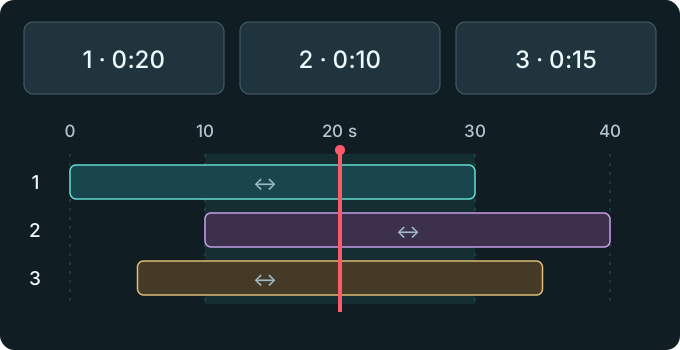
The Preview time slider and draggable ruler change only the shared preview moment. The central red line marks it across tracks. Previews show real frames at corresponding source times; outside, they show Not started or Ended.
Drag a whole numbered range bar sideways to change its relative start. All sources, including 1, move equally. This does not trim, copy or stretch video.
The total span covers earliest start to latest end and displays from zero; zero and length can change. Highlighted Shared range is the intersection with video in every participating source. Editing previews the total span; group playback uses the intersection, requiring at least 0.25 seconds.
04Fine-tune a start
Choose Scale 1×, 2×, 4× or 8×. Select a source and enter its start seconds under Start · s, or tap −0.01 / +0.01. Valid input can be followed directly by Apply; correct invalid input when prompted.
A 30-second clip starting at shared time 10 shows its own second 5 at preview time 15. The 0.01-second increment does not promise a new frame every 10 milliseconds: source frame rate and decoding determine pictures. There is no automatic beat synchronization.
05Apply or cancel safely
Opening Layout pauses the group. Apply saves selection, layout, order, offsets and preview position together. Cancel discards this draft. Resume manually after closing.
Apply moves an outside preview to the nearest shared boundary. An existing shared Loop is converted with any time-origin change and validated. If invalid, the whole change is rejected, preserving previous settings and Loop. Adjust or cancel the draft, or explicitly change the old Loop before applying again.
06Use shared and source controls
Play/pause, speed, seeking and shared Loop control the whole group, including Single. The shared Loop does not overwrite source Loops. The timeline follows the selected source in aligned shared time.
The source tools are only Replace source and Edit this source’s beats, Marks and Loops. Top mirror and crop also target the selected source. Editing pauses the group and opens that source’s editor; Return to slots comes back.
Tap uncovered black space to hide/restore controls in either orientation. Tap or drag down the handle above the tools; in full screen use the bottom pull-up entry to restore. Use these handles without black space. Hidden controls hide tools and numbers; the eye also hides numbers and selection outlines. Show controls and enable the eye to restore them.
07What is saved
Sources, fixed numbers, order, layout, source views, alignment and shared Loop save in the current local library/account workspace. Reopening stays paused. Sources beyond active device capacity remain saved; reorder on a suitable device if needed. Saved references stay protected during storage cleanup.
No cloud sync, media copying, cross-device transfer or combined-video export is added. This workspace is not automatically included in the older comparison list’s separate JSON backup.
Files → Comparisons remains the separate two-video feature: choose A and B and Save with a name. Its sessions, Align controls and JSON backup remain separate from main practice Layout.
08If something cannot play
If a source is unavailable, preparation fails or stuttering persists, pause and retain settings. Follow retry/source-selection prompts; a matching filename alone does not establish media identity.
If Apply fails, check source, shared range, numeric input and existing Loop.